What the Chrome Extension does
- Shows whether the person or company you’re viewing on LinkedIn is already in Reevo, and adds them as a contact or account if not.
- Finds a person’s email address and phone number before you add them.
- Warns you when a person or company you’re about to add may already be in Reevo.
- Shows a contact’s activity, recent meetings, and sequence enrollments next to their LinkedIn profile.
- Lets you email, call, add to a list, or add to a sequence from the panel.
- Works on LinkedIn profiles, company pages, and message threads, and on Sales Navigator lead pages, account pages, searches, and saved lead lists.
- Shows a company’s Reevo info when you visit its website.
- Lets you send the Reevo bot to a Google Meet call that’s scheduled in Reevo.
Before you start
Make sure you have:- Google Chrome with the Reevo extension installed (steps below).
- A Reevo account. You sign in to the extension with your Reevo login.
- Create permission on Contacts and Accounts to add people and companies. See Access Controls.
- A LinkedIn account signed in on the same browser. The Sales Navigator features also need a Sales Navigator subscription.
- Enrichment credits, only if you plan to find emails and phone numbers. Check your Usage page.
- A phone number set up in Reevo, only if you plan to make calls. See Dialer.
Install and set up the extension
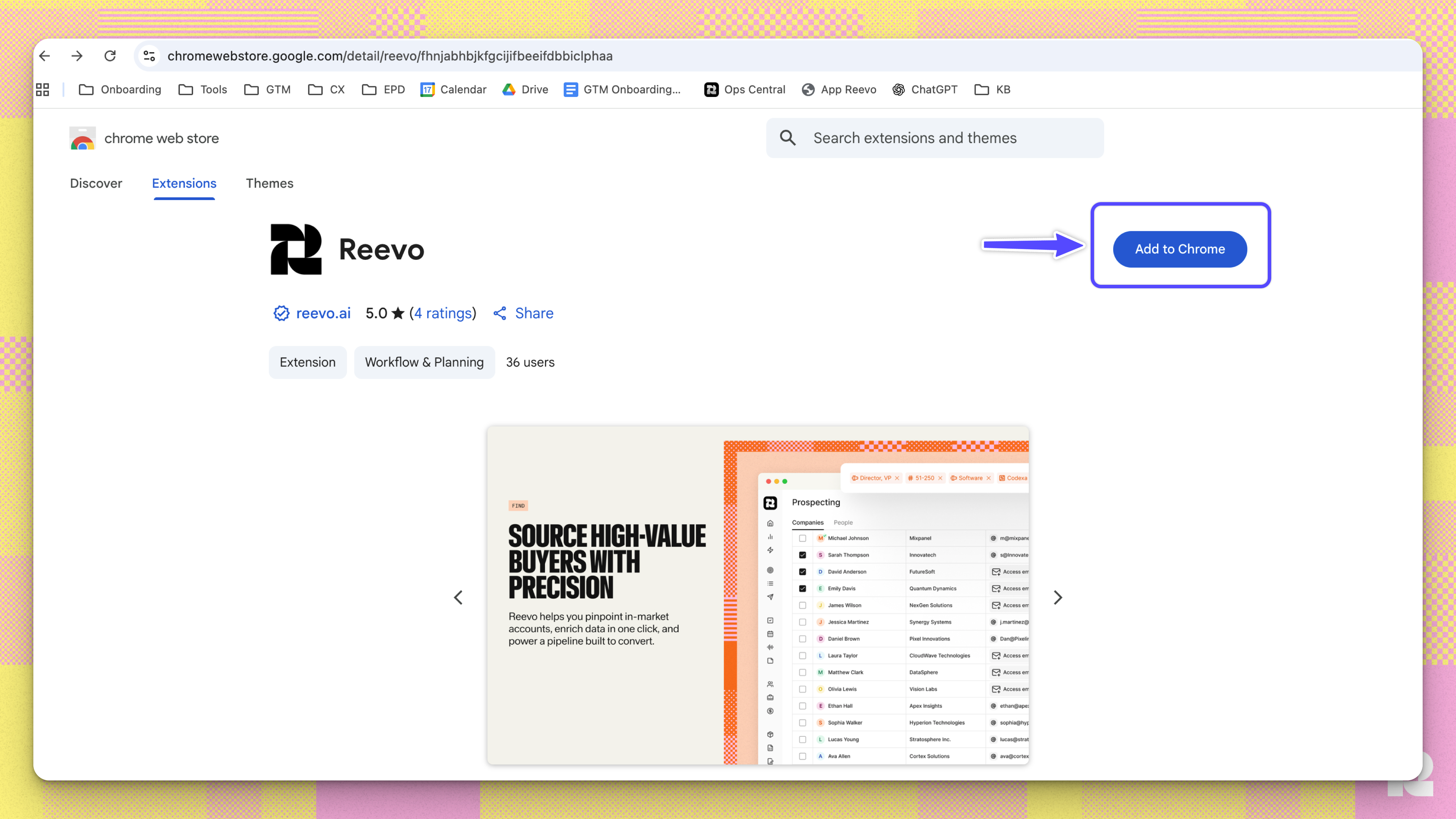
- Open the Reevo extension in the Chrome Web Store and click Add to Chrome.
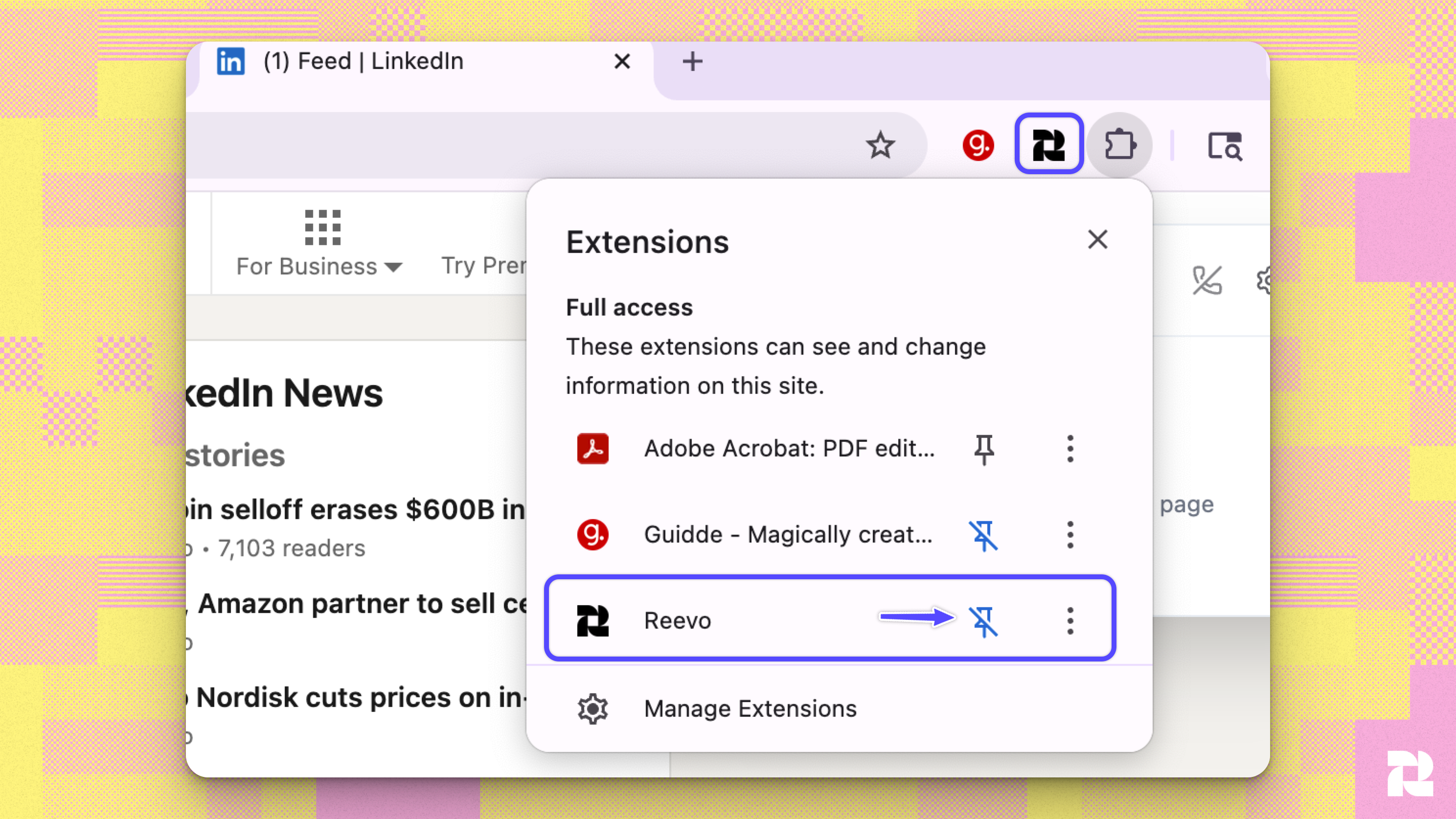
- Pin the extension to your Chrome toolbar so the Reevo icon is always one click away.
- Click the Reevo icon in your toolbar, then click Sign in to Reevo.
- Optional: to have the panel open by itself on LinkedIn, click the Settings icon at the top of the Reevo panel and turn on Auto-show on LinkedIn profiles. It’s off until you turn it on. With it off, click the Reevo icon on a LinkedIn page to open or close the panel.
The panel works on LinkedIn profiles, company pages, and message threads, and on Sales Navigator lead pages, account pages, searches, and saved lead lists. With Auto-show on LinkedIn profiles on, it opens by itself on all of these. On any other LinkedIn page, it asks you to open a profile or company page.
Add a person from LinkedIn
When you open the profile of someone who isn’t in Reevo yet, the panel shows what Reevo found about them: their Company, Job title, and Contact information.- Open the person’s LinkedIn profile and open the Reevo panel.
- If the panel shows Scroll page to populate, scroll down the profile until LinkedIn loads the Experience section. Reevo uses it to file the contact under the right company and job title, and Add to Reevo stays unavailable until it loads.
- Check the company. If the person has more than one current role, click the company to choose which one Reevo uses.
- Optional: click Enrich email or Enrich phone to find their contact details before you add them. Each search uses enrichment credits.
- Check the duplicate result. While the panel loads, it shows Checking Reevo for duplicates. If Reevo finds a likely match, the panel shows This person may already be in Reevo, what matched, and a link to each matching contact you have access to.
- Click Add to Reevo. Reevo creates the contact, links it to the company’s account (creating the account if it doesn’t exist yet), and switches the panel to the contact view.
Sometimes Reevo can only find the company’s name, with no LinkedIn page or website to go on. In that case Reevo asks Which company should we link to? Pick an existing account, or choose to create a new account with that name, then click Add & link to company. To add the person without a company, click Add contact only.
Work with a contact that’s already in Reevo
When a contact in Reevo has the same LinkedIn URL as the profile you’re viewing, or the same work email shown on that profile, the panel opens that contact instead of offering to add them. From there you can do 4 things, covered below. The contact view shows:- Contact information: the contact’s account, email, and phone. An icon next to the email shows how likely it is to bounce: Email verified, Not yet verified, Medium risk of bouncing, or High risk of bouncing.
- Activity: recent emails, meetings, calls, tasks, sequence steps, and notes.
- Recent meetings: meetings scheduled with the contact.
- Sequences: the sequences the contact is in and the status of each step.
1. Send an email
- Click the contact’s email address.
- Fill in the Subject and Message. Use the toolbar to insert a template, insert your scheduling link, or attach a file.
- Click Send.
2. Make a call
- Click the contact’s phone number. The call starts from your Reevo phone number.
- Use Mute, Unmute, and End call to control the call.
If you haven’t set up a phone number, the panel shows Set up phone. Click it to finish setup in Reevo.
3. Add to a sequence
- Click Add to sequence.
- Under Sequence, pick the sequence. To build or manage sequences, see Create a Sequence.
- Under Sending method, choose Use existing CRM owners (default) to send from the mailbox of the contact’s assigned CRM owner, or Use specific mailboxes to spread emails evenly across mailboxes you pick.
- Choose a Fallback mailbox. Reevo uses it when the first choice has no available mailbox.
- Optional: turn on Auto-enrich on enroll to enrich the contact when they’re enrolled.
- Click Add to sequence.
4. Add to a list
- Click Add to list.
- Choose a list under Select list, or click + Create new list, enter a name, and click Create and add.
- Click Add to list.
Use the extension on LinkedIn company pages
If the company isn’t in Reevo
The panel shows the company’s Description, Industry, Employees, Founded, and Website, plus Similar companies. LinkedIn only lists the website on the company’s About tab, so if the website shows Visit About tab to populate, open the About tab. Reevo also checks for duplicates and shows This company may already be in Reevo if it finds a likely match. To add the company as an account, click Add to Reevo.If the company is already in Reevo
The panel opens the account and shows:- Prospect in Reevo: opens Reevo prospecting, searching for people at this account.
- Add to list: adds the account to a list, the same way as for contacts.
- Account information: website, description, estimated employee count, estimated annual revenue, and location.
- Activity: recent activity on the account.
- Similar companies: click one to open it on LinkedIn.
Use the extension in LinkedIn messages
Open a conversation in LinkedIn messaging and the panel shows the person you’re talking to, the same way it would on their profile. You can add them, enrich them, or work with them as a contact.- In a group conversation, the panel asks you to pick who to look up.
- Sponsored messages aren’t linked to a LinkedIn profile, so the panel can’t look them up.
- If Reevo needs the person’s Experience section to add them, open their LinkedIn profile and add them from there.
Add records from LinkedIn Sales Navigator
On a Sales Navigator lead page or account page, the panel works the same way as on a LinkedIn profile or company page. You can also add companies and people to Reevo in bulk straight from Sales Navigator search results and saved lead lists. That workflow has its own article, covering how results load, what the row icons mean, what Select all actually selects, and how lists work: LinkedIn Sales Navigator: Add Accounts and Leads.See company info on company websites
When you visit a company’s website, the extension shows that company’s information from Reevo. The feature arrived in extension version 2.3.19. Use version 2.3.21 or later, which includes fixes for turning the setting off and on. This section has 3 parts:1. Open it from the toolbar
On a company website, click the Reevo icon in your Chrome toolbar. The popup shows the company behind the site. Once you turn on the panel for company websites (below), clicking the icon on a company website opens or closes the on-page panel instead of the popup.2. Turn on the panel for company websites
To have the Reevo panel open on the page itself, the way it does on LinkedIn, turn on the website setting. It is off until you turn it on.- Click the Reevo icon in your Chrome toolbar.
- Click the Settings icon at the top of the popup.
- Turn on Show Reevo on company websites.
- If Chrome asks for access to the sites you visit, allow it.
With the setting on and while you’re signed in to Reevo, the panel opens by itself once per site each time the page loads, and only when Reevo recognizes the company from the site’s domain. It does not open by itself for a match based only on the page title. You can open or close the panel at any time with the Reevo icon in your toolbar. The extension never looks up search engines, email, social media, work tools (such as chat, docs, video meeting, and code hosting sites), CRMs, LinkedIn (which has its own panel), and Reevo itself. To stop the panel, turn off Show Reevo on company websites from the Settings icon in the Reevo panel.
3. What the panel shows
To add a company that is not in your CRM yet, click Add to Reevo. Reevo creates an account for the company with you as the owner, and the panel switches to the account view.
Send the Reevo bot to a Google Meet call
When you open a Google Meet call whose link matches a meeting in Reevo that hasn’t ended yet, a Reevo Bot widget appears on the call page. Use it to bring the Notetaker Bot into the call.Troubleshooting / FAQs
The Reevo panel doesn't open on LinkedIn
The Reevo panel doesn't open on LinkedIn
Click the Reevo icon in your Chrome toolbar to open it, or turn on Auto-show on LinkedIn profiles in the extension’s Settings. The panel only works on the LinkedIn pages listed under “Install and set up the extension”. If it asks you to sign in, click Sign in to Reevo.
Why can't I click Add to Reevo?
Why can't I click Add to Reevo?
Reevo needs the person’s Experience section to file them under the right company and job title. Scroll down the LinkedIn profile until the Experience section loads, then try again. If you’re in LinkedIn messaging, open the person’s profile and add them from there.
Why can't I email or call someone from the panel?
Why can't I email or call someone from the panel?
You can email or call a person only after they’re in Reevo. Click Add to Reevo first. To call, you also need a phone number set up in Reevo; see the Dialer article linked under “Before you start”.
I see an error message when trying to enrich contacts
I see an error message when trying to enrich contacts
Check that your organization has enough enrichment credits. Admins can click Add credits in the panel to buy more. Everyone else sees a message to ask their admin.
The extension shows a contact that's already in Reevo, but I want to update their information
The extension shows a contact that's already in Reevo, but I want to update their information
The panel shows contacts as they are in Reevo. To edit a contact’s details, open the contact in Reevo.
How does the extension handle company information?
How does the extension handle company information?
When you add a person, Reevo links them to the account for their current company and creates that account if it doesn’t exist yet. If the person has more than one current role, you choose which company to use. If Reevo only finds the company’s name, it asks you to pick an existing account, create a new one, or add the contact without a company.
The panel shows "New version available"
The panel shows "New version available"
Click Update now to install the latest version of the extension, then refresh the page if the panel asks you to.
Why is the panel in a different language?
Why is the panel in a different language?
The extension uses the same language as your Reevo profile.
Why doesn't the Reevo panel open on a company website?
Why doesn't the Reevo panel open on a company website?
Check that your extension is on version 2.3.21 or later and that Show Reevo on company websites is turned on in the extension’s settings. If you remove the extension’s site access in Chrome, the setting turns off, so turn it on again and allow access. The panel opens by itself only while you’re signed in to Reevo, once per page load, and only when Reevo recognizes the company from the site’s domain; otherwise, click the Reevo icon in your toolbar. The extension never looks up search engines, email, social media, work tools (such as chat, docs, video meeting, and code hosting sites), CRMs, LinkedIn (which has its own panel), and Reevo itself.
I turned on the website setting from the LinkedIn panel and the Reevo popup opened. Why?
I turned on the website setting from the LinkedIn panel and the Reevo popup opened. Why?
Chrome only lets you grant site access from the extension’s toolbar popup. Finish turning on Show Reevo on company websites in the popup that opened.
The Reevo Bot widget doesn't appear on my Google Meet call
The Reevo Bot widget doesn't appear on my Google Meet call
The widget appears only when you’re signed in to the extension and the Meet link matches a meeting in Reevo that hasn’t ended. Check that the meeting is in Reevo with the same Google Meet link.
Still have questions? Sign in and use AskReevo for instant answers or to raise a support ticket.