Overview
Mailbox Health is a monitoring feature that tracks the status and deliverability of your outbound email mailboxes. It helps ensure your outbound emails reach recipients successfully by monitoring authentication setup, sending reputation, and domain configuration. Maintaining healthy mailboxes is essential for successful email outreach campaigns and sequence performance, as poor mailbox health directly impacts deliverability rates and can lead to emails being marked as spam. Mailbox health monitoring works alongside email verification and sequence performance tracking to provide a complete view of your email outreach effectiveness. Regular maintenance helps protect your sender reputation and ensures consistent campaign results.Why Mailbox Health Impacts Deliverability
Mailbox health directly impacts your email outreach success and sender reputation. Healthy mailboxes achieve better inbox placement rates, meaning more of your emails reach recipients’ primary inboxes rather than spam folders. Poor mailbox health can cause emails to be blocked or filtered, reducing campaign effectiveness and potentially damaging your long-term sending reputation. The health monitoring system provides early warnings about deliverability issues before they affect your campaigns, allowing you to take proactive action to maintain consistent outreach performance.Accessing Mailbox Health
Mailbox Health appears in the mailboxes list and on each mailbox’s details page:- Mailboxes list (the Health column) shows a color-coded badge for every mailbox.
- Navigate to Settings → Email setup in your account.
- Admin-level access is required to view health for all mailboxes across the organization. Non-admin users can view health for mailboxes they own.
- Select the Mailboxes tab. Locate the Health column.
- You can filter the list by health status using the Health filter. The available filter options are Satisfactory, Needs attention, Warming up, and Not monitored.
- Click any mailbox row to open its detail page for the full health breakdown.
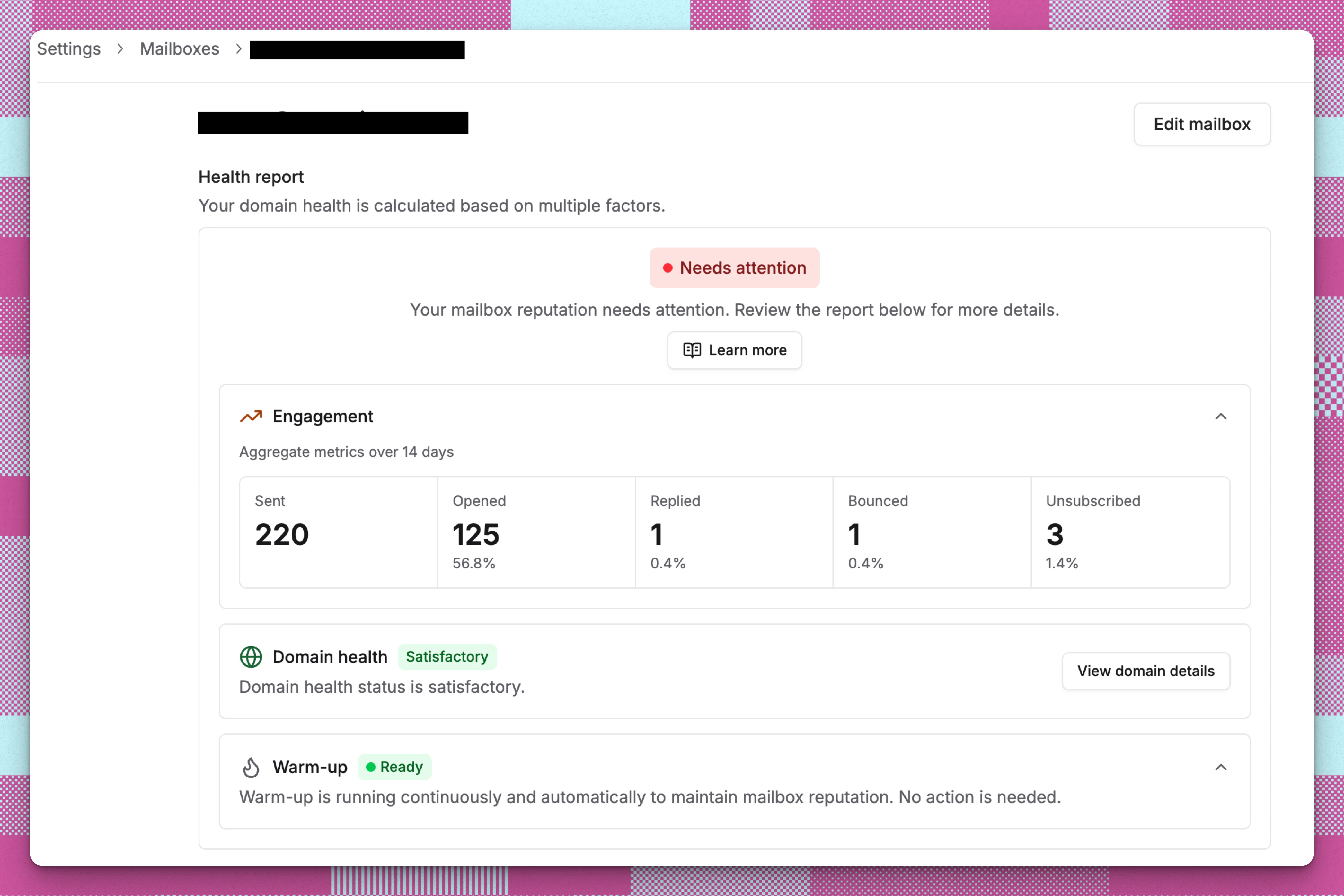
- Mailbox details page: the Health report shows the overall status and the breakdown by factor, described below.
How Reevo Measures and Displays Mailbox Health
Each mailbox receives an overall health status of Satisfactory or Needs attention based on three health factors: engagement metrics, domain health, and warm-up status. Reevo automatically evaluates your mailboxes by looking at aggregate email activity over the most recent 14-day window. If any contributing factor is flagged, the overall status changes to Needs attention so you can investigate before your campaigns are affected.Understanding the Health Factor Cards
Below the overall status, you will see up to three expandable cards. Each card represents a factor that contributes to your mailbox’s health. 1. Engagement: evaluates your email engagement metrics over the last 14 days.- Healthy: “Your engagement metrics are satisfactory.”
- Needs attention: “Some engagement metrics need attention to maintain optimal deliverability.”
Click the card to expand it and see aggregate metrics over 14 days.
The engagement factor is marked as Needs attention when either of the following is exceeded:
- Bounce rate above 5%, once at least 300 emails have been sent and at least 3 bounces recorded.
- Unsubscribe rate above 2%, once at least 300 emails have been sent and at least 3 unsubscribes recorded.
Open rate and reply rate are shown for reference only. Neither one can move a mailbox to Needs attention. At least 50 emails must be sent before engagement rates are calculated and displayed at all. The higher 300-email floors above apply specifically to whether bounce rate or unsubscribe rate can flag the mailbox. Low volumes are excluded because a single bounce or unsubscribe would otherwise produce a misleadingly high rate.
- Healthy: “Domain health status is satisfactory.”
- Needs attention: “Domain health status needs attention.”
- Unavailable: “Domain health status is not available.”
Domain health is based on the domain’s DNS setup (SPF, DKIM, DMARC, and MX), spam blocklist status, Google Postmaster data, and the domain’s bounce rate. Domain age is shown on the domain’s details page but does not affect its health status. A View domain details button lets you navigate directly to the domain’s health page for a deeper breakdown. See Domain Health for what each domain factor checks.
When expanded, the warm-up card shows a short description of the current warm-up state. Warm-up is optional for new mailboxes, so a mailbox that was set up without Warm up first shows Inactive. This is expected and does not mean anything is wrong.
Warm-up metrics are informational only. They do not affect the overall mailbox health status. Even if warm-up metrics are flagged, the mailbox will remain Satisfactory as long as engagement and domain health are in good standing.
Mailbox Health States
The mailbox health system uses five primary health statuses to indicate deliverability performance:
The overall status is Needs attention if ANY of the following are true:
- The parent domain’s health status is degraded.
- The mailbox’s bounce rate exceeds 5% (with at least 300 emails sent and at least 3 bounces).
- The mailbox’s unsubscribe rate exceeds 2% (with at least 300 emails sent and at least 3 unsubscribes).
The overall status is Satisfactory when all of the above factors are within acceptable ranges. If a factor has insufficient data (for example, fewer than 50 emails sent), it is skipped rather than counted against the mailbox. Open rate, reply rate, and all warm-up metrics never contribute to a Needs attention status.
Additional Detail Page Sections
The mailbox detail page also includes:- Mailbox details: Shows basic information including the mailbox’s Type, Domain, Created date, Age, and Reply-to address.
- Sending configuration: Shows Today’s limit (emails sent in the last 24 hours against today’s cap), the Sending ramp (speed and stage), the Minimum delay between emails, and whether warm-up has been bypassed. While a mailbox is warming up or ramping, today’s cap is lower than the full daily send limit, and the card shows the estimated date when full volume unlocks. See Mailbox Ramp-Up.
- Sequence usage: Shows which sequences are currently using this mailbox.
Improving Mailbox Health
If Engagement needs attention
The engagement card evaluates bounce rate and unsubscribe rate over the last 14 days. (Open rate and reply rate are shown for reference but do not trigger the “Needs attention” status.) High bounce rate (above 5%):- Reevo offers email verification as part of our suite of products. Double-check your settings to ensure stricter filtering is enabled. This helps exclude contacts with invalid email addresses upfront, so remaining bounces are more likely caused by domain or IP-level blocks rather than bad addresses.
- Clean your contact lists before launching sequences. Use email verification tools to remove invalid addresses.
- Remove hard bounces and long-term inactive contacts from your lists.
- If bounce rates spike, check your domain against blocklist tools like Spamhaus.
- Improve targeting. Match your messaging tone to the persona you’re reaching out to.
- Avoid bait-and-switch subject lines or mismatched copy.
- Segment by role, intent, or behavior rather than blasting a static list.
- Write like a human. Avoid AI-generic or bloated marketing language.
- Personalize deeply with real context (mutual connections, industry events, recent news).
- Use A/B testing to find which subject lines and formats resonate.
- Keep sending volume low (dozens per mailbox, not hundreds) to maintain reputation.
If Domain health needs attention
Click View domain details on the domain health card and review the domain’s Health report to see which factor is flagged. Common causes:- Missing DNS records (SPF, DKIM, DMARC, MX): If this is an issue, contact Reevo Support.
- Domains purchased through Reevo (primary, self-serve) - Reevo handles domain registration, DNS configuration (SPF, DKIM, DMARC, MX), and ongoing health monitoring automatically. This is the standard workflow.
- Bring your own domain - Customers who purchased a domain from a third-party provider can transfer DNS control to Reevo by updating their nameservers. However, this is not self-serve - it requires contacting a Reevo onboarding specialist or support rep. Once transferred, Reevo manages the DNS records.
- Listed on spam blocklists: Request delisting from the relevant blocklist provider and investigate what caused the listing.
- Google Postmaster issues: A low Google domain reputation, a high user-reported spam rate, or low SPF, DKIM, or DMARC authentication success rates. Reduce volume, improve targeting, and fix authentication before sending more.
- High domain bounce rate: Bounces across all mailboxes on the domain are above 5%. Verify and clean your contact lists.
Troubleshooting / FAQs
Why does the Health column show "Not rated"?
Why does the Health column show "Not rated"?
The mailbox does not yet have enough data for Reevo to evaluate. This is common for newly created mailboxes that have not yet sent enough sequence emails. Health status will appear once the mailbox accumulates sufficient sending activity.
Why does the Health column show "Not monitored"?
Why does the Health column show "Not monitored"?
This mailbox was connected via OAuth (Gmail or Outlook) rather than purchased through Reevo. Health tracking is not available for personal connected mailboxes because Reevo cannot monitor their warm-up or delivery metrics.
What is the difference between "Satisfactory" and "Needs attention"?
What is the difference between "Satisfactory" and "Needs attention"?
Satisfactory means all evaluated health factors (engagement rates and domain health) are within acceptable thresholds. Needs attention means at least one factor has crossed a threshold, such as a bounce rate above 5% or a domain health issue. Open the detail page to see which specific factor is flagged.
My mailbox just switched to "Needs attention." What should I check first?
My mailbox just switched to "Needs attention." What should I check first?
Open the mailbox detail page and look at the Engagement card. Expand it to view the 14-day metrics. A spike in Bounced or Unsubscribed relative to Sent is the most common cause. Clean invalid addresses from your contact lists, verify lists before sending, and review recent email content.
Does the warm-up card affect my overall health status?
Does the warm-up card affect my overall health status?
No. Warm-up metrics are informational only. They help you understand your warm-up progress but do not change the overall health badge. Only engagement metrics and domain health contribute to the Satisfactory or Needs attention determination.
Why does the warm-up card say Inactive?
Why does the warm-up card say Inactive?
Warm-up is optional for new mailboxes. If Warm up first was not turned on when the mailbox was set up, the warm-up card shows Inactive. The mailbox still sends normally and builds volume through its ramp-up.
How often is health status updated?
How often is health status updated?
Reevo recalculates health factors automatically on a regular schedule using the most recent 14-day window of email activity. The status reflects near-real-time performance rather than a lifetime average.
How many emails do I need to send before health is evaluated?
How many emails do I need to send before health is evaluated?
At least 50 outreach emails must be sent within the evaluation window before engagement rates are calculated. Before bounce rate or unsubscribe rate can actually flag your mailbox, the bar is higher: at least 300 emails sent, plus at least 3 bounces or 3 unsubscribes. Low volumes are excluded because a single bounce or unsubscribe would otherwise produce a misleadingly high rate.
What is the difference between mailbox health and domain health?
What is the difference between mailbox health and domain health?
Mailbox health evaluates a single email account’s bounce rate and unsubscribe rate (open and reply rates are shown for reference). Domain health evaluates the sending domain’s DNS setup, spam blocklist status, Google Postmaster data, and bounce rate across all its mailboxes. A mailbox inherits its domain’s health status, so a domain issue will also affect all mailboxes on that domain.
Can I filter the mailbox list by health status?
Can I filter the mailbox list by health status?
Yes. Use the Health filter in the mailbox list view. You can filter by Satisfactory, Needs attention, Warming up, or Not monitored, making it easy to focus on the mailboxes that need attention.
Does mailbox health affect whether my sequences can send?
Does mailbox health affect whether my sequences can send?
Health status does not automatically block sending. However, a mailbox marked as Needs attention is far more likely to have emails land in spam or be rejected. Pausing sequences on a flagged mailbox, fixing the underlying issue, and resuming is the recommended approach.
What does "Warming up" mean in the health column?
What does "Warming up" mean in the health column?
The mailbox is sending warm-up emails to build reputation with email providers before its ramp-up starts. This only applies to mailboxes set up with Warm up first, and lasts about 14 business days. Health status becomes available after warm-up completes and the mailbox begins sending sequence emails.