> ## Documentation Index
> Fetch the complete documentation index at: https://help.reevo.ai/llms.txt
> Use this file to discover all available pages before exploring further.
# Record creation
> Control how Reevo automatically creates Accounts and Contacts from email and calendar activity.
Control how Reevo automatically creates Accounts and Contacts from email and calendar activity across your workspace.
The **Organization** section of Settings is only visible to users with an Admin role. If you don't see it, ask an admin to make the change on your behalf.
***
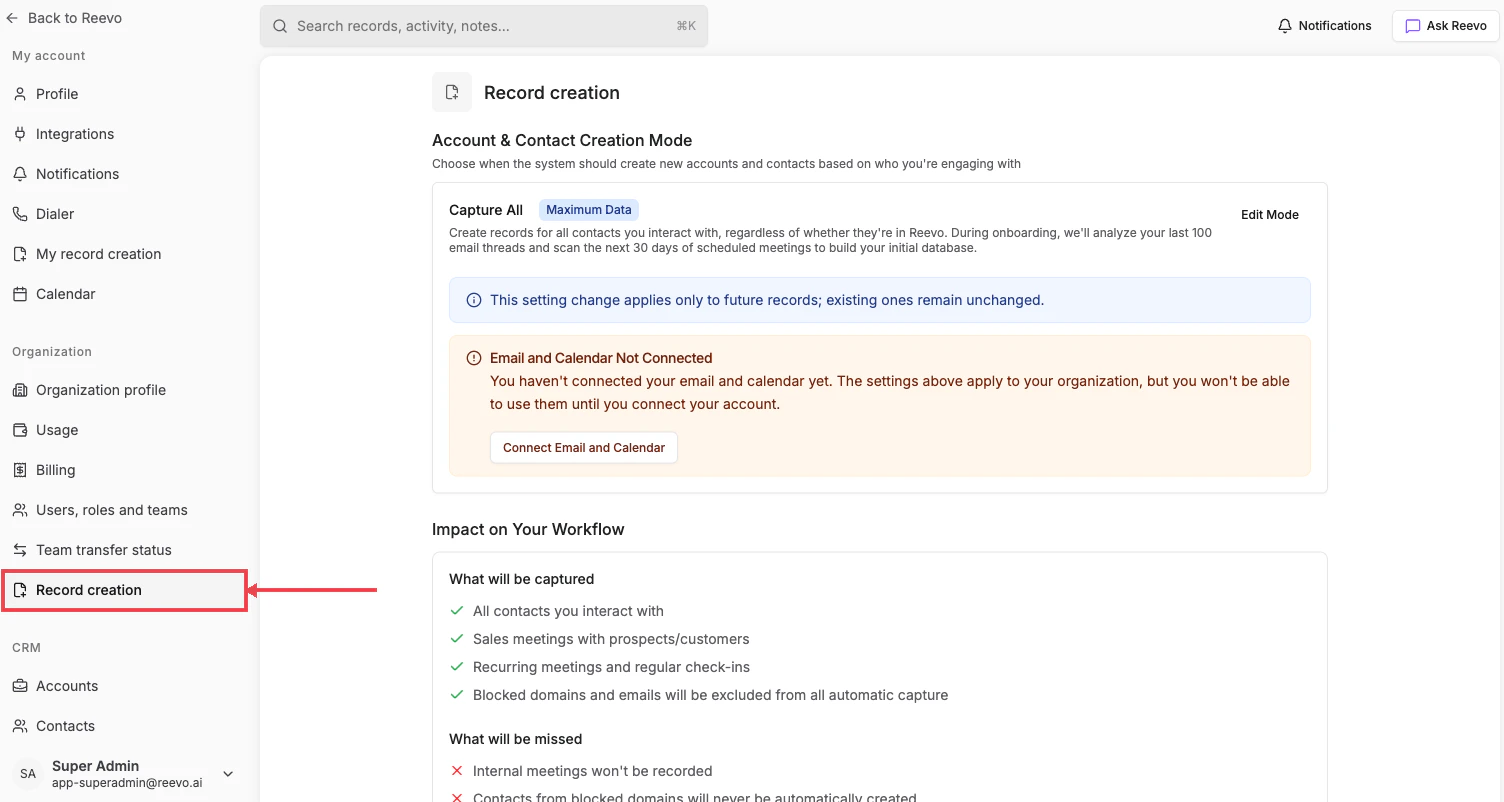
## Where to find it
1. Click your name in the lower-left corner of Reevo.
2. Select **Settings**.
3. Under **Organization**, click [**Record creation**](https://app.reevo.ai/settings/record-creation).
 ***
## What you can configure
| Setting | Description |
| :- | :- |
| **Account & Contact Creation Mode** | Choose **Capture All**, **Existing Accounts**, **Outbound Only**, or **Do Not Capture**. Click **Edit Mode** to switch. |
| **Blocked domains & emails** | Exclude specific domains or email addresses from automatic record creation. |
| **Meeting Recording Settings** | Define when calls and meetings should be recorded. See [Meetings & Notetaker Bot Settings](/Conversations/Meetings-and-Bot-Settings) for details. |
| **Impact on Your Workflow** | Review what Reevo will capture or miss with the selected mode. |
These settings apply only to future records. Records created before a mode change are not affected.
If your organization has not connected email and calendar, the page shows an **Email and Calendar Not Connected** warning with a shortcut to connect them.
***
## Block domains and emails from automatic record creation
Use **Blocked domains & emails** to exclude activity from public, generic, personal, or sensitive addresses. You can still create contacts from blocked domains manually.
To add an entry:
1. In **Blocked domains & emails**, click **Add**.
2. Enter a domain, a wildcard domain, or a specific email address.
3. Click **Add** to save the entry.
Domain matching is exact unless the entry starts with `*.`. Reevo treats `www.example.com` as `example.com`.
| Entry | What it blocks | What it does not block |
| :- | :- | :- |
| **`example.com`** | `example.com` and `www.example.com`. | Other subdomains, such as `mail.example.com`. |
| **`*.example.com`** | All other subdomains, such as `mail.example.com` and `a.b.example.com`. | `example.com` and `www.example.com`. |
| **Both `example.com` and `*.example.com`** | The main domain, `www`, and all other subdomains. | Nothing under `example.com`. |
| **`noreply@example.com`** | Only that email address. | Other addresses at `example.com`. |
Wildcard entries must use `*.` followed by a root domain, such as `*.example.com`. The form rejects public suffixes such as `*.co.uk` and wildcard bases that already contain a subdomain, such as `*.mail.example.com`.
Wildcard matching applies to the activity-capture block list on this page. Blocked domains in Meeting Recording Settings remain exact matches.
***
## Per-user override
Individual users can opt out of automatic record creation for their own activity from [My record creation](/Getting-started/Individual-Account-Settings/My-Record-Creation), even when the organization-level setting is enabled.
***
## Mode reference
For a full breakdown of each mode and how it interacts with email and calendar sync, see the **Record Auto-Creation Settings** section in [Onboarding to Reevo!](/Getting-started/Onboarding).
***
> Still have questions? [Sign in to Reevo](https://app.reevo.ai) and use AskReevo for instant answers or to raise a support ticket.
This documentation is built and hosted on [Mintlify](https://mintlify.com), a developer documentation platform.
***
## What you can configure
| Setting | Description |
| :- | :- |
| **Account & Contact Creation Mode** | Choose **Capture All**, **Existing Accounts**, **Outbound Only**, or **Do Not Capture**. Click **Edit Mode** to switch. |
| **Blocked domains & emails** | Exclude specific domains or email addresses from automatic record creation. |
| **Meeting Recording Settings** | Define when calls and meetings should be recorded. See [Meetings & Notetaker Bot Settings](/Conversations/Meetings-and-Bot-Settings) for details. |
| **Impact on Your Workflow** | Review what Reevo will capture or miss with the selected mode. |
These settings apply only to future records. Records created before a mode change are not affected.
If your organization has not connected email and calendar, the page shows an **Email and Calendar Not Connected** warning with a shortcut to connect them.
***
## Block domains and emails from automatic record creation
Use **Blocked domains & emails** to exclude activity from public, generic, personal, or sensitive addresses. You can still create contacts from blocked domains manually.
To add an entry:
1. In **Blocked domains & emails**, click **Add**.
2. Enter a domain, a wildcard domain, or a specific email address.
3. Click **Add** to save the entry.
Domain matching is exact unless the entry starts with `*.`. Reevo treats `www.example.com` as `example.com`.
| Entry | What it blocks | What it does not block |
| :- | :- | :- |
| **`example.com`** | `example.com` and `www.example.com`. | Other subdomains, such as `mail.example.com`. |
| **`*.example.com`** | All other subdomains, such as `mail.example.com` and `a.b.example.com`. | `example.com` and `www.example.com`. |
| **Both `example.com` and `*.example.com`** | The main domain, `www`, and all other subdomains. | Nothing under `example.com`. |
| **`noreply@example.com`** | Only that email address. | Other addresses at `example.com`. |
Wildcard entries must use `*.` followed by a root domain, such as `*.example.com`. The form rejects public suffixes such as `*.co.uk` and wildcard bases that already contain a subdomain, such as `*.mail.example.com`.
Wildcard matching applies to the activity-capture block list on this page. Blocked domains in Meeting Recording Settings remain exact matches.
***
## Per-user override
Individual users can opt out of automatic record creation for their own activity from [My record creation](/Getting-started/Individual-Account-Settings/My-Record-Creation), even when the organization-level setting is enabled.
***
## Mode reference
For a full breakdown of each mode and how it interacts with email and calendar sync, see the **Record Auto-Creation Settings** section in [Onboarding to Reevo!](/Getting-started/Onboarding).
***
> Still have questions? [Sign in to Reevo](https://app.reevo.ai) and use AskReevo for instant answers or to raise a support ticket.
This documentation is built and hosted on [Mintlify](https://mintlify.com), a developer documentation platform.