> ## Documentation Index
> Fetch the complete documentation index at: https://help.reevo.ai/llms.txt
> Use this file to discover all available pages before exploring further.
# Zoom Recording Bot Troubleshooting
> If the Reevo meeting bot isn’t joining or recording your Zoom meeting, review the relevant scenario below.
## Host Denied Recording Permission
**Cause:** The meeting host did not grant the bot permission to record when prompted.
**Steps to Resolve:**
1. The Reevo user should open the **Upcoming Events** page and re-add the bot to the ongoing meeting.
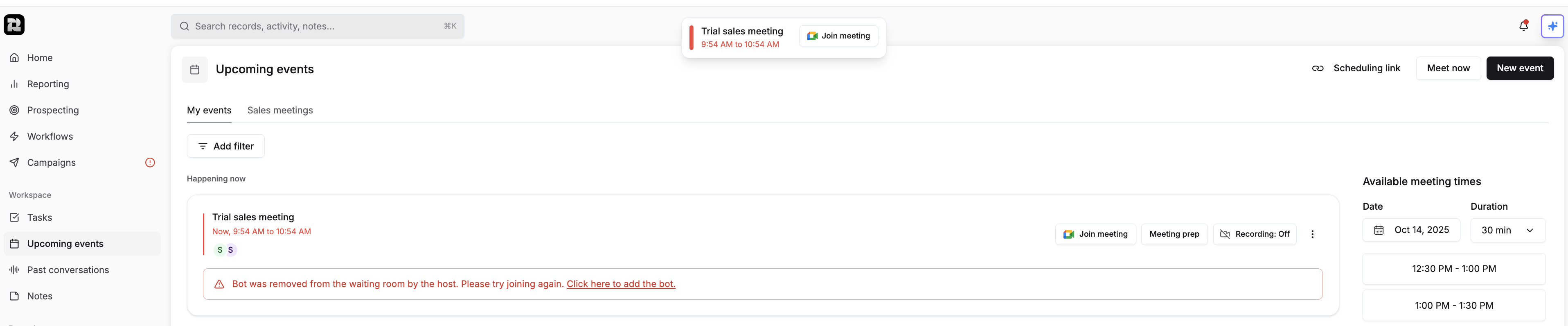 2. Ask the **host** to re-add the bot and **grant recording permission** when prompted by Zoom.
3. Once permission is granted, the bot should start recording successfully.
## Host Not Present in the Meeting
**Cause:** The bot can’t start recording until the host joins and grants permission. Other participants may join earlier, but recording stays off until then. About 5 minutes in, Reevo notifies everyone on the meeting that recording hasn’t started, and the bot may post a message in the meeting chat. The bot keeps waiting after that, and leaves on its own if the host never joins.
**Steps to Resolve:**
1. The Reevo user should open the **Upcoming Events** page and re-add the bot to the ongoing meeting.
2. Ask the **host** to re-add the bot and **grant recording permission** when prompted by Zoom.
3. Once permission is granted, the bot should start recording successfully.
## Host Not Present in the Meeting
**Cause:** The bot can’t start recording until the host joins and grants permission. Other participants may join earlier, but recording stays off until then. About 5 minutes in, Reevo notifies everyone on the meeting that recording hasn’t started, and the bot may post a message in the meeting chat. The bot keeps waiting after that, and leaves on its own if the host never joins.
**Steps to Resolve:**
1. The Reevo user should open the **Upcoming Events** page and re-add the bot to the ongoing meeting.
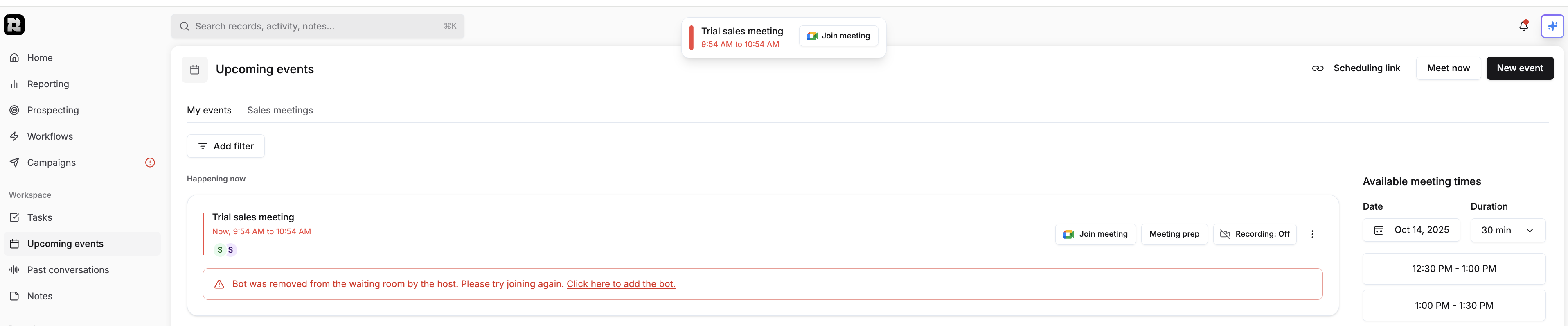 2. Ask the **host** to join using the **same Zoom account** that scheduled the meeting.
3. Once the host joins and grants the bot recording permission, the bot should begin recording successfully.
## Bot Doesn’t Have Recording Permission
**Cause:** The host’s Zoom account settings don’t allow local recording, preventing the bot from starting the session.
**Steps to Resolve:**
1. Log in to your Zoom account and go to **My Account** → **Settings** → **Recording**.
2. Ask the **host** to join using the **same Zoom account** that scheduled the meeting.
3. Once the host joins and grants the bot recording permission, the bot should begin recording successfully.
## Bot Doesn’t Have Recording Permission
**Cause:** The host’s Zoom account settings don’t allow local recording, preventing the bot from starting the session.
**Steps to Resolve:**
1. Log in to your Zoom account and go to **My Account** → **Settings** → **Recording**.
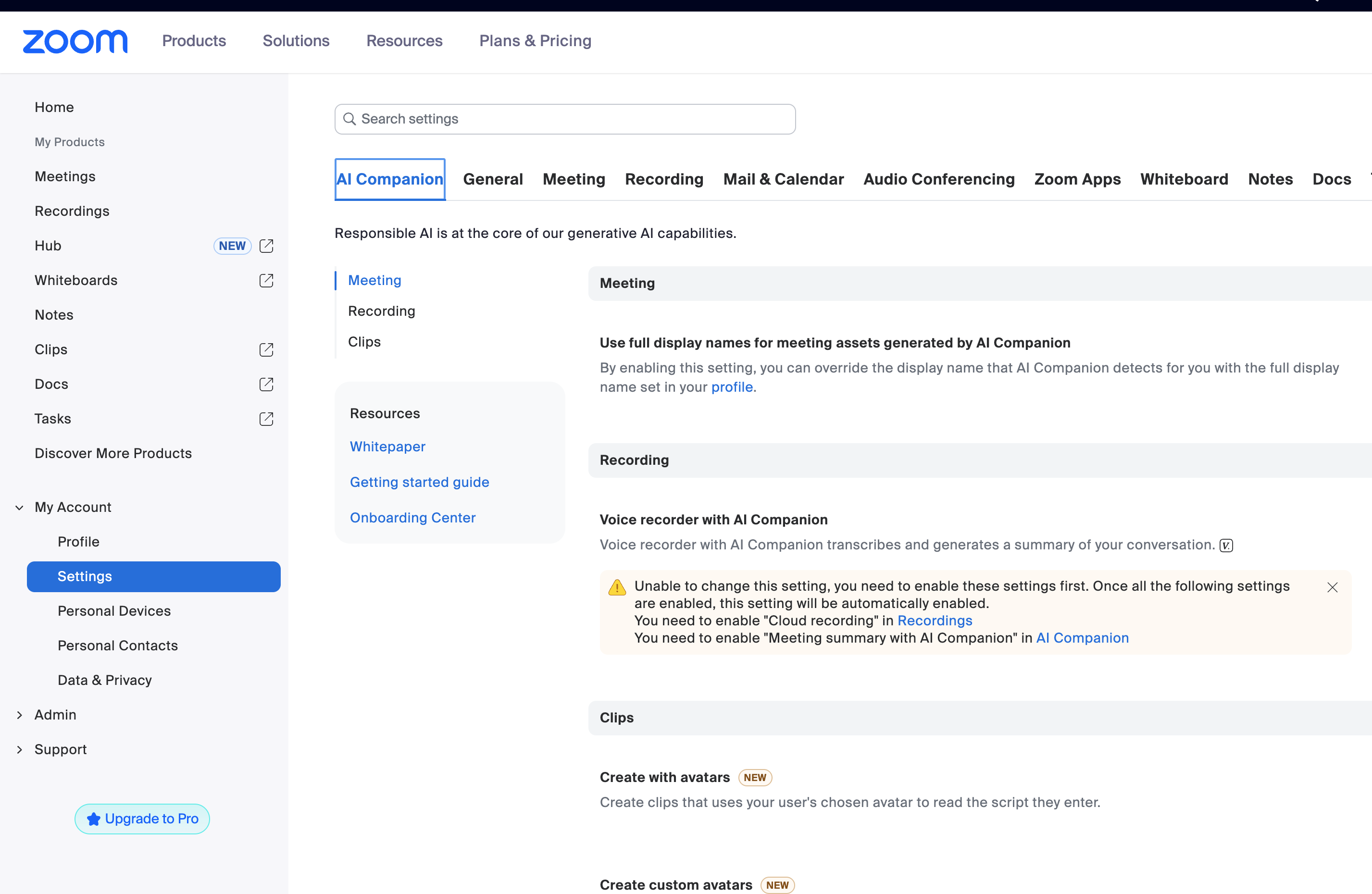 2. Under the Recording tab, ensure “Record to computer files” is enabled.
 3. After updating the Zoom host settings, open the **Upcoming Events** page in Reevo.
4. Locate the ongoing meeting and **re-add the bot**.
5. The bot should now successfully join and begin recording.
> Still have questions? [Sign in](https://reevo.ai/) and use AskReevo for instant answers or to raise a support ticket.
This documentation is built and hosted on [Mintlify](https://mintlify.com), a developer documentation platform.
3. After updating the Zoom host settings, open the **Upcoming Events** page in Reevo.
4. Locate the ongoing meeting and **re-add the bot**.
5. The bot should now successfully join and begin recording.
> Still have questions? [Sign in](https://reevo.ai/) and use AskReevo for instant answers or to raise a support ticket.
This documentation is built and hosted on [Mintlify](https://mintlify.com), a developer documentation platform.