> ## Documentation Index
> Fetch the complete documentation index at: https://help.reevo.ai/llms.txt
> Use this file to discover all available pages before exploring further.
# Reevo Desktop App
> Record and transcribe meetings in multiple languages on your Mac, take notes, ask meeting questions, and customize desktop reminders and controls.
Use Reevo on your Mac to record online or in-person meetings, write notes, and ask questions about the conversation. You can keep the app nearby with the menu bar and floating widget, and choose which meeting reminders you receive.
## Prerequisites
* A Mac for the macOS app covered in this guide.
* An active Reevo account and an internet connection to start recording.
* An [active calendar integration](https://app.reevo.ai/settings/integrations) (for example, Google Calendar) connected to your account, if you want to record scheduled meetings.
* macOS permissions for Microphone and Screen & System Audio Recording (you will be prompted during setup).
Recording laws vary by region. Before recording any conversation, review [Understanding Recording Consent](/Conversations/Understanding-Recording-Consent) and make sure you have the consent you need.
***
## Installing and Setting Up
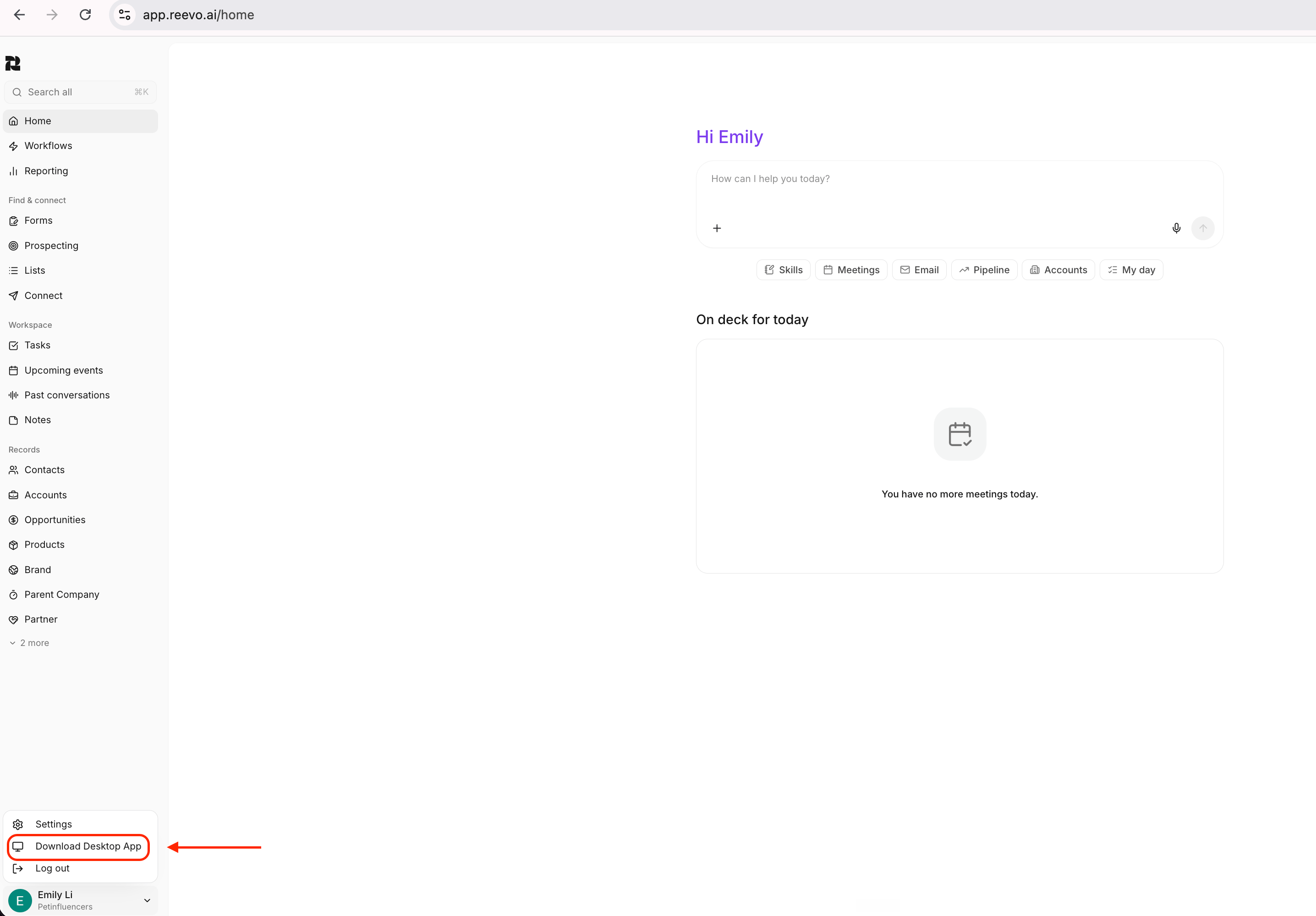
1. In the Reevo web app, click your profile in the bottom left corner of the sidebar and select **Download Desktop App**. This option appears when you are on a Mac.
 2. Open the downloaded DMG file and drag Reevo into your Applications folder.
3. Open the Reevo Desktop App. You will be prompted to sign in through your browser.
4. After signing in, grant the requested macOS permissions:
* **Microphone**: captures your side of the conversation for transcription.
* **Screen and system audio recording**: captures what other participants say.
5. In **Settings > Meeting preferences**, turn on **Notify me before meetings** if you want calendar reminders.
6. Open **Home** to find scheduled meetings under **Upcoming** and previous meetings under **Past meetings**.
Open **Settings > Permissions** to check **Microphone** and **System audio**. Use the permission row to open macOS System Settings if access is missing, then return to Reevo.
***
## Record a Meeting
You can record a meeting from your calendar or start a new note for a conversation without a calendar event. Reevo captures your microphone and meeting audio on your Mac.
### From Your Calendar
1. Open **Home** and select a meeting under **Upcoming**.
2. Use **Start recording** in the meeting’s recording widget. Before the scheduled time, the action may say **Start early**.
3. Write your own notes while Reevo transcribes the conversation.
4. Select **Stop** when you finish recording.
You can open a scheduled meeting before it begins to prepare notes or ask meeting questions without starting a recording.
### Without a Calendar Event
1. Select **New note** from Home or the floating widget, or **Start transcription** from the menu bar.
2. Reevo opens a new meeting note and starts recording. Give the note a title you will recognize later.
3. Select **Stop** when the conversation ends. If the meeting controls offer **Resume**, you can continue recording into that meeting.
Local recording supports **multiple languages**. The supported language set can vary by workspace. If you need to confirm a particular language, contact Reevo support.
***
## Take Notes and Review the Transcript
Use **Notes** to capture your own observations during the meeting. Expand the recording control to read the transcript, use **Search transcript** to find a phrase, or **Copy transcript** to copy the captured text.
After the meeting, open it from **Past meetings** on Home. When a summary is available, switch between **Summary** and **Notes** to review the recap and your own notes. Meeting notes and transcripts are also available in Reevo on the web.
***
## Ask Questions Before, During, and After a Meeting
Open a meeting and use **Ask anything** at the bottom of the window. The chat uses that meeting as its context, so you can prepare before the call, catch up during it, or work through follow-up questions afterward.
| When | Example question |
| :- | :- |
| **Before** | What should I prepare for this meeting? |
| **During** | What have we discussed so far? |
| **After** | What follow-up actions did we agree on? |
***
## Use the Menu Bar and Floating Widget
### Menu Bar
Click the Reevo icon in the macOS menu bar to see upcoming meeting details and open a meeting. The menu also includes **Open Reevo**, **Start transcription**, **Settings**, **Check for updates…**, and **Quit Reevo**.
To hide the menu bar icon, open **Settings > Preferences** and turn off **Show Reevo in menu bar**. You can still open Settings from the app menu or with **Command + ,**.
### Floating Widget
The compact widget sits at the edge of your screen. When idle, it offers **Open Reevo** and **New note**. You can drag it to move it, and use its recording controls during a meeting.
To keep the shortcut visible between recordings, turn on **Always show floating widget** in **Settings > Preferences**. Turn it off if you do not want the idle shortcut.
***
## Choose Your Meeting Reminders
Open **Settings > Meeting preferences** to control these two notifications independently:
| Setting | What it does | To turn it off |
| :- | :- | :- |
| **Show meeting detection prompt** | Prompts you when Reevo detects an active call or huddle. | Turn off this toggle to stop detection prompts. |
| **Notify me before meetings** | Shows a reminder before a meeting on your connected calendar begins. | Turn off this toggle to stop scheduled reminders. |
A detected-call prompt includes **Take notes**. For example, a Slack call can show **Huddle detected**. A prompt is an invitation to start taking notes; it does not mean a recording has already started.
***
## Customize Settings
Open **Settings** from the app menu or press **Command + ,**. Settings has three sections:
| Section | Controls |
| :- | :- |
| **Preferences** | Choose a **System**, **Light**, or **Dark** theme; control the idle floating widget and menu bar icon. |
| **Meeting preferences** | Adjust **Recording volume** and control meeting detection prompts and scheduled reminders. |
| **Permissions** | Check **Microphone** and **System audio** access. |
### Adjust Recording Volume
In **Meeting preferences**, move **Recording volume** toward **Louder** for quiet voices or **Quieter** if audio sounds distorted. Changes apply immediately and are saved on this device. Select **Reset to default** to undo the volume adjustment.
***
## Recording Limits and Interruptions
A recording stops after four hours, with a warning 15 minutes before the limit. Silence does not stop the recording, so select **Stop** when you are finished.
If Reevo reports **Recording interrupted**, select **View meeting** to review the meeting and any captured transcript. Interrupted recordings can also appear under **Past meetings**. Check the captured content before relying on the meeting notes.
***
## Keeping the App Updated
The desktop app updates itself automatically. When a new version has downloaded, you will see a prompt to restart the app to apply it. You can also [download the latest macOS installer](https://dxhwnonm32ypq.cloudfront.net/Reevo-latest.dmg) and reinstall the app.
***
## Troubleshooting / FAQs
Check your internet connection and **Settings > Permissions > Microphone**. Recording requires microphone access. If macOS prompts for access, grant it and try again.
Check **System audio** under **Settings > Permissions**. On macOS, grant Reevo **Screen and system audio recording** access so it can capture meeting audio as well as your microphone.
In **Settings > Meeting preferences**, turn off **Show meeting detection prompt**, **Notify me before meetings**, or both, depending on which reminders you want to stop.
Open **Settings > Preferences**. Turn off **Always show floating widget** to hide the idle shortcut, or **Show Reevo in menu bar** to hide the menu bar icon.
No. Select **Stop** when you finish. Recordings also stop at the four-hour limit, with a warning 15 minutes beforehand.
Yes, local recording supports multiple languages. The supported set can vary by workspace; contact Reevo support if you need to confirm a specific language.
Open **Home** and look under **Past meetings**, then select the meeting to review its notes and transcript.
In the Reevo web app, open your profile menu and select **Download Desktop App**. You can also use the installer linked under **Keeping the App Updated** above.
This documentation is built and hosted on [Mintlify](https://mintlify.com), a developer documentation platform.
2. Open the downloaded DMG file and drag Reevo into your Applications folder.
3. Open the Reevo Desktop App. You will be prompted to sign in through your browser.
4. After signing in, grant the requested macOS permissions:
* **Microphone**: captures your side of the conversation for transcription.
* **Screen and system audio recording**: captures what other participants say.
5. In **Settings > Meeting preferences**, turn on **Notify me before meetings** if you want calendar reminders.
6. Open **Home** to find scheduled meetings under **Upcoming** and previous meetings under **Past meetings**.
Open **Settings > Permissions** to check **Microphone** and **System audio**. Use the permission row to open macOS System Settings if access is missing, then return to Reevo.
***
## Record a Meeting
You can record a meeting from your calendar or start a new note for a conversation without a calendar event. Reevo captures your microphone and meeting audio on your Mac.
### From Your Calendar
1. Open **Home** and select a meeting under **Upcoming**.
2. Use **Start recording** in the meeting’s recording widget. Before the scheduled time, the action may say **Start early**.
3. Write your own notes while Reevo transcribes the conversation.
4. Select **Stop** when you finish recording.
You can open a scheduled meeting before it begins to prepare notes or ask meeting questions without starting a recording.
### Without a Calendar Event
1. Select **New note** from Home or the floating widget, or **Start transcription** from the menu bar.
2. Reevo opens a new meeting note and starts recording. Give the note a title you will recognize later.
3. Select **Stop** when the conversation ends. If the meeting controls offer **Resume**, you can continue recording into that meeting.
Local recording supports **multiple languages**. The supported language set can vary by workspace. If you need to confirm a particular language, contact Reevo support.
***
## Take Notes and Review the Transcript
Use **Notes** to capture your own observations during the meeting. Expand the recording control to read the transcript, use **Search transcript** to find a phrase, or **Copy transcript** to copy the captured text.
After the meeting, open it from **Past meetings** on Home. When a summary is available, switch between **Summary** and **Notes** to review the recap and your own notes. Meeting notes and transcripts are also available in Reevo on the web.
***
## Ask Questions Before, During, and After a Meeting
Open a meeting and use **Ask anything** at the bottom of the window. The chat uses that meeting as its context, so you can prepare before the call, catch up during it, or work through follow-up questions afterward.
| When | Example question |
| :- | :- |
| **Before** | What should I prepare for this meeting? |
| **During** | What have we discussed so far? |
| **After** | What follow-up actions did we agree on? |
***
## Use the Menu Bar and Floating Widget
### Menu Bar
Click the Reevo icon in the macOS menu bar to see upcoming meeting details and open a meeting. The menu also includes **Open Reevo**, **Start transcription**, **Settings**, **Check for updates…**, and **Quit Reevo**.
To hide the menu bar icon, open **Settings > Preferences** and turn off **Show Reevo in menu bar**. You can still open Settings from the app menu or with **Command + ,**.
### Floating Widget
The compact widget sits at the edge of your screen. When idle, it offers **Open Reevo** and **New note**. You can drag it to move it, and use its recording controls during a meeting.
To keep the shortcut visible between recordings, turn on **Always show floating widget** in **Settings > Preferences**. Turn it off if you do not want the idle shortcut.
***
## Choose Your Meeting Reminders
Open **Settings > Meeting preferences** to control these two notifications independently:
| Setting | What it does | To turn it off |
| :- | :- | :- |
| **Show meeting detection prompt** | Prompts you when Reevo detects an active call or huddle. | Turn off this toggle to stop detection prompts. |
| **Notify me before meetings** | Shows a reminder before a meeting on your connected calendar begins. | Turn off this toggle to stop scheduled reminders. |
A detected-call prompt includes **Take notes**. For example, a Slack call can show **Huddle detected**. A prompt is an invitation to start taking notes; it does not mean a recording has already started.
***
## Customize Settings
Open **Settings** from the app menu or press **Command + ,**. Settings has three sections:
| Section | Controls |
| :- | :- |
| **Preferences** | Choose a **System**, **Light**, or **Dark** theme; control the idle floating widget and menu bar icon. |
| **Meeting preferences** | Adjust **Recording volume** and control meeting detection prompts and scheduled reminders. |
| **Permissions** | Check **Microphone** and **System audio** access. |
### Adjust Recording Volume
In **Meeting preferences**, move **Recording volume** toward **Louder** for quiet voices or **Quieter** if audio sounds distorted. Changes apply immediately and are saved on this device. Select **Reset to default** to undo the volume adjustment.
***
## Recording Limits and Interruptions
A recording stops after four hours, with a warning 15 minutes before the limit. Silence does not stop the recording, so select **Stop** when you are finished.
If Reevo reports **Recording interrupted**, select **View meeting** to review the meeting and any captured transcript. Interrupted recordings can also appear under **Past meetings**. Check the captured content before relying on the meeting notes.
***
## Keeping the App Updated
The desktop app updates itself automatically. When a new version has downloaded, you will see a prompt to restart the app to apply it. You can also [download the latest macOS installer](https://dxhwnonm32ypq.cloudfront.net/Reevo-latest.dmg) and reinstall the app.
***
## Troubleshooting / FAQs
Check your internet connection and **Settings > Permissions > Microphone**. Recording requires microphone access. If macOS prompts for access, grant it and try again.
Check **System audio** under **Settings > Permissions**. On macOS, grant Reevo **Screen and system audio recording** access so it can capture meeting audio as well as your microphone.
In **Settings > Meeting preferences**, turn off **Show meeting detection prompt**, **Notify me before meetings**, or both, depending on which reminders you want to stop.
Open **Settings > Preferences**. Turn off **Always show floating widget** to hide the idle shortcut, or **Show Reevo in menu bar** to hide the menu bar icon.
No. Select **Stop** when you finish. Recordings also stop at the four-hour limit, with a warning 15 minutes beforehand.
Yes, local recording supports multiple languages. The supported set can vary by workspace; contact Reevo support if you need to confirm a specific language.
Open **Home** and look under **Past meetings**, then select the meeting to review its notes and transcript.
In the Reevo web app, open your profile menu and select **Download Desktop App**. You can also use the installer linked under **Keeping the App Updated** above.
This documentation is built and hosted on [Mintlify](https://mintlify.com), a developer documentation platform.